
Sharing Is More Than Sending a Link
Secure design sharing is the ability to control who can view, comment on, or edit a design, track when it's been accessed, and revoke that access at any time. CollabDraw provides granular viewer/editor permissions, link expiry dates, view analytics with total views and unique visitors, and instant revocation — all from a single share modal, entirely free and in your browser.
But professional design work demands more control. Who can edit? Who can only view? When should the link stop working? Has the client actually looked at the latest version you sent? These questions matter — and CollabDraw's sharing system is built to answer all of them.
Permission Levels: Controlling What Others Can Do
Every collaborator or shared link can be set to one of three permission levels:
View Only
The viewer can see the canvas and navigate it, but cannot add, move, or edit anything. They can't even add comments. Use this for final client deliverables, portfolio sharing, and any situation where you need people to see the work without interacting with it.
Comment
The reviewer can view the canvas and add threaded comments at any position, but cannot edit design elements. This is the appropriate setting for design reviews — you want feedback, but you don't want reviewers accidentally moving objects. It's also useful for getting stakeholder sign-off: they can formally acknowledge specific elements via comments without the risk of altering the work.
Editor
Full editing access — the collaborator can add, move, resize, delete, and modify any canvas element. Reserve this for active team members who are contributing to the design work. Note that editors can also share the project with others, so grant this level thoughtfully.
Setting permissions
Open the Share modal from the top navigation bar. Under the "Invite people" section, add collaborators by email and select their permission level from the dropdown. For the public link, set a default permission level that applies to anyone who visits the URL.
Expiry Dates: Time-Limited Access
Not every shared link should last forever. Common scenarios where expiry dates are essential:
- Tender and pitch submissions — the link should expire when the pitch decision deadline passes
- NDA-covered work — access should terminate when the non-disclosure period ends
- Time-sensitive campaigns — a design brief link for a campaign that launches in two weeks should expire when the campaign launches
- Freelance client handoff — the client gets 30 days of access to view and download, then the link deactivates
To set an expiry: in the Share modal, find the "Link Expires" control and set a specific date and time. After expiry, anyone visiting the link sees a "This link has expired" page — not your canvas. You retain full access to your project; only the external link deactivates.
Expiry dates can be extended at any time before they trigger. Useful if a review period runs over or a stakeholder needs a few extra days.
Share Analytics: Knowing When Your Work Has Been Seen
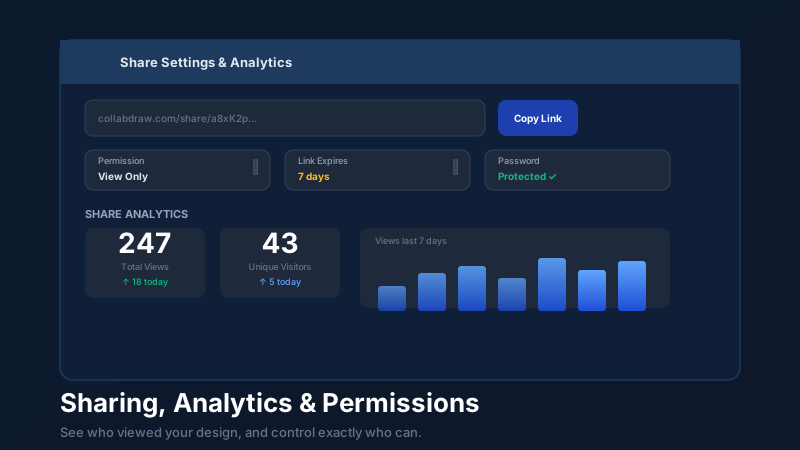
One of the most underused features in CollabDraw is share analytics. Every shared project tracks how many times it's been viewed and by how many unique visitors.
Why analytics matter
"Did you get a chance to look at the designs?" is a question designers and project managers ask constantly. With share analytics, you don't need to ask. You can see exactly when someone first viewed the design and how many times they've returned.
Reading your share stats
Open the Share modal and navigate to the Analytics section. You'll see:
- Total views — how many times the link has been opened
- Unique visitors — how many different people have viewed it
- View trend — a time-based chart showing when views occurred
The trend chart is particularly useful: a spike in views often correlates with an important meeting or a deadline. Seeing engagement patterns helps you understand when stakeholders are actually engaging with your work.
Using analytics in client conversations
If a client claims they "haven't had a chance to look at the designs" but your analytics show 7 views in the past 48 hours, you have data to politely redirect the conversation. Analytics introduce accountability into the review process — and that's a good thing for everyone.
Revoking Access Instantly
Changed your mind about a share? Client relationship ended unexpectedly? Design leaked to a competitor? Revoking a shared link is immediate.
Open the Share modal and toggle off the public link. The URL stops working immediately — anyone who visits it gets an error, not your canvas. Re-enabling generates a new URL, so old links can't be re-used.
For individual collaborators, remove them from the "People with access" list in the Share modal. Their access terminates the moment you save the change.
How CollabDraw Compares to Figma, Notion, and Google Drive for Design Sharing
When choosing a free design sharing tool, the main alternatives are Figma (freemium with limited sharing analytics on free plan), Notion (document-focused, not design-specific), and Google Drive (generic file sharing, no canvas-native view). Here's how CollabDraw stands out:
- Truly free: Full analytics, expiry dates, and permission controls at no cost — Figma limits sharing features on free plans
- No sign-up required: Share a link and viewers access instantly — Figma, Notion, and Google Drive all require accounts for viewers
- Design-specific sharing: Viewers see an interactive canvas, not a static file — Google Drive only shows file previews
- Built-in analytics: Track total views, unique visitors, and view trends — Figma only offers this on paid plans
Key Facts About CollabDraw's Free Design Sharing Tools
- Price: 100% free — no subscription, no credit card, no watermark
- Permission levels: View-only, comment, and editor per collaborator or link
- Security features: Password protection, expiry dates, instant revocation, view analytics
- Export formats: PNG, PDF, SVG, PPTX — all free
- Account required: No — viewers don't need to sign up
- Best for: Designers, agencies, and freelancers who need controlled, trackable design sharing
Managing Multiple Shared Versions
Long-running projects often involve sharing different versions with different audiences. A few practices that keep this manageable:
- Use descriptive names for each sharing context in your internal notes: "v1 — client review", "v2 — internal team", "final — stakeholder approval"
- Set different permission levels for different audiences rather than using a single link for everyone
- Use expiry dates aggressively — don't let old links persist beyond their useful period
- Check analytics periodically to understand which versions are still being actively viewed
Sharing isn't the end of your control over a design — it's an extension of it. CollabDraw gives you the tools to maintain that control precisely, for as long as you need it.