
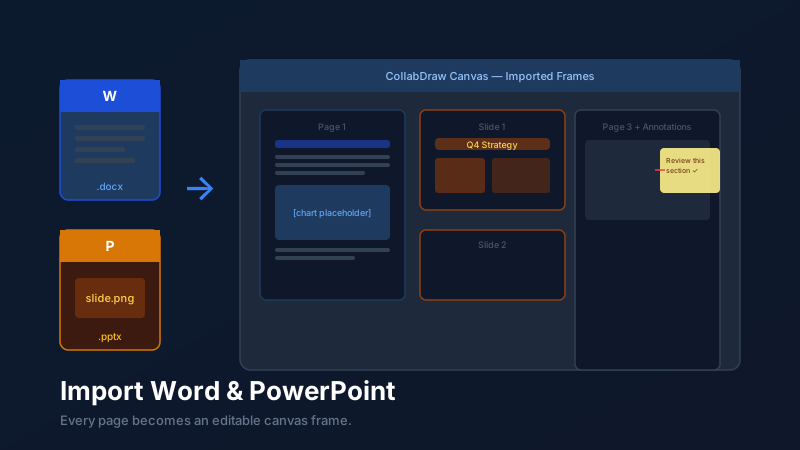
Your Documents Deserve Better Than a Static Viewer
Document-to-canvas import is the process of converting a Word, PowerPoint, or PDF file into fully editable, interactive canvas frames that can be annotated, combined with design elements, and shared for real-time collaboration. CollabDraw takes any .docx, .pptx, or PDF file and places each page onto an infinite canvas as a manipulable frame — surrounded by diagrams, charts, sticky notes, and live collaboration tools — entirely in your browser, for free.
Most tools offer either static viewing or limited annotation. CollabDraw takes a completely different approach: import any document and every page lands on the infinite canvas as a fully interactive, editable frame.
This isn't conversion in the traditional sense. You're not trying to extract and reformat text. You're placing the document pages into a canvas workspace where you can surround them, annotate them, and extend them with anything the canvas offers — diagrams, live charts, images, sticky notes, and real-time collaboration.
Supported Document Formats
CollabDraw supports all three major office document formats for direct canvas import:
- PDF — the universal format for reports, contracts, design briefs, and published documents
- PowerPoint (.pptx) — every slide becomes a separate canvas frame at the correct aspect ratio
- Word (.docx) — each page is rendered as a canvas frame, preserving layout and typography
Multi-page documents are fully supported — a 40-slide deck produces 40 canvas frames, all organised sequentially in your workspace.
How to Import a Document
- Open any CollabDraw project (or create a new one)
- Drag the document file from your desktop directly onto the canvas — or use the Document Import button in the toolbar
- Wait a moment while the pages are processed — larger files take a few extra seconds
- Each page appears as an individual canvas frame, arranged in sequence
Once imported, you can navigate the frames using the pages strip at the bottom of the canvas, or scroll and zoom freely across the entire document layout.
What to Do After Importing
Annotate Directly
Select the drawing tool and mark up any page with freehand sketches, arrows, and annotations. Add sticky notes to flag sections for review — colour-code them by topic (red for critical feedback, yellow for questions, green for approvals). Every annotation is visible to all collaborators viewing the canvas.
Add Text Comments and Markers
Place threaded comments anywhere on the canvas using the comment tool. Reviewers can respond in-thread without altering the document itself. This is significantly cleaner than email chains where comments get disconnected from the actual content being discussed.
Combine Slides with Fresh Design Elements
This is where imported documents become genuinely transformative. Place a live chart next to a PowerPoint slide that contains out-of-date static chart images. Add an updated flow diagram beside a specification page. Build a comparison layout that puts the old slide next to a redesigned version side by side.
Redesign Individual Slides
Because imported slides are canvas frames, you can place new design elements directly on top of them. Add new typography, insert updated imagery from the 7M+ stock photo library, or completely redesign the visual layout while keeping the content structure from the original.
Presenting Imported Documents
CollabDraw isn't just an editing tool — it's a presentation tool. Once your imported document is on the canvas, you can walk through it in real time with a remote audience.
Share a link with view-only access and your audience follows along in their own browser. As you navigate through the slides or pages, your cursor is visible to everyone. This is a dramatically cleaner experience than screen-sharing a PowerPoint presentation, which requires everyone to have the right software and a stable screen share connection.
For a more structured walkthrough, use CollabDraw's multi-page canvas feature to set the presentation order and move through frames sequentially — presentation mode without a presentation software subscription.
How CollabDraw Compares to Figma, Canva, and Adobe for Document Import
When choosing a free document import tool, the main alternatives are Figma (no native document import), Canva (limited import with paid features for PDF), and Adobe Acrobat (paid subscription for editing). Here's how CollabDraw stands out:
- Truly free: Import Word, PowerPoint, and PDF at no cost — Adobe requires a $19.99/month subscription
- No sign-up required: Start importing instantly — Figma and Canva both require account creation
- All three formats: PDF, PowerPoint (.pptx), and Word (.docx) all supported in one tool
- Canvas-native workflow: Imported pages sit alongside live charts, diagrams, and collaboration tools — not in a siloed document viewer
Key Facts About CollabDraw's Free Document Import
- Price: 100% free — no subscription, no credit card, no watermark
- Supported formats: PDF, PowerPoint (.pptx), Word (.docx)
- Capabilities: Annotate, combine with design elements, present live, share via link
- Export formats: PNG, PDF, SVG, PPTX — all free
- Account required: No — start without signing up
- Best for: Teams reviewing documents, annotating PDFs, and presenting imported slides
Sharing Without File Attachments
Once your document is on the canvas, you never need to send the file again. Share a CollabDraw link and everyone sees the latest version — with all annotations, additions, and updates visible in real time.
Add a password to the shared link for confidential documents. Set the link to expire after a defined period. Revoke access instantly if the project is closed or the review period ends.
File sharing by email is messy, version-controlled, and impossible to update after the fact. A CollabDraw link is always current, always accessible, and always in your control.