
When Do You Actually Need a Flowchart?
A free flowchart maker is an online tool for creating process diagrams, decision trees, and system flow visualisations using standard shapes connected by directional arrows. CollabDraw provides a free flowchart maker with drag-and-drop shapes, smart connectors that reroute automatically, and real-time collaboration — all in the browser with no download or sign-up required.
- A business process has multiple branches and exceptions that are hard to describe in prose
- You're onboarding someone new and need to show how a system works
- You're designing a user journey and need to map every decision point
- You're debugging a process and need to see where things break down
- You're presenting a technical system to a non-technical audience
In each case, a well-structured flowchart communicates in seconds what paragraphs of text cannot.
Standard Flowchart Shapes and What They Mean
Professional flowcharts use a standardised visual vocabulary. CollabDraw includes all the standard shapes:
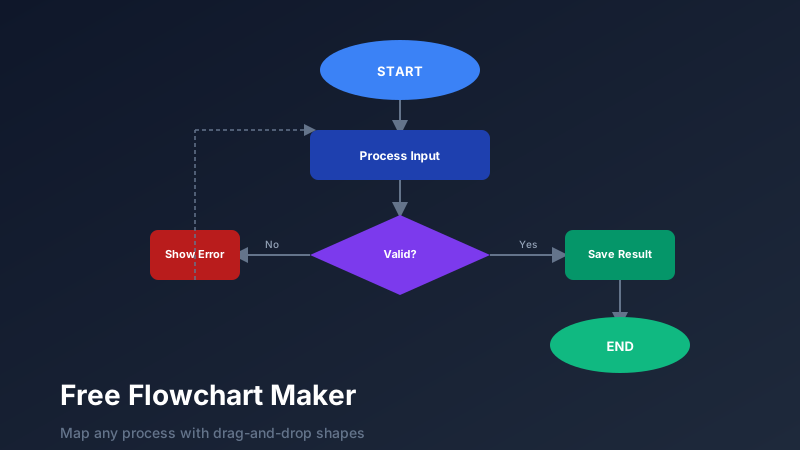
- Oval / Rounded rectangle — Start and End points. Every flowchart has exactly one Start and one or more End nodes.
- Rectangle — Process step. An action that happens: "Validate input", "Send email", "Calculate total".
- Diamond — Decision point. A yes/no or true/false question that branches the flow in two directions.
- Parallelogram — Input/Output. Data that enters or leaves the system: "Read from database", "Print receipt".
- Cylinder — Database or stored data. Represents persistent storage in system diagrams.
- Arrow / Connector — The flow between steps, with optional labels for branch conditions ("Yes", "No", "Error", "Success").
Building a Flowchart in CollabDraw
Step 1: Start with the Start node
Place an oval and label it "Start". This anchors your diagram and reminds you where the process begins.
Step 2: Map the happy path first
Add rectangle process steps for the most common, successful path through the process. Don't worry about exceptions yet — get the core flow right first.
Step 3: Add decision points
Where the process branches based on a condition, insert a diamond. Label the diamond with the question being asked. Add "Yes" and "No" (or your specific condition labels) to the connecting arrows.
Step 4: Handle exceptions and error paths
Now add the alternative branches — error handling, edge cases, exceptional flows. These often loop back to earlier steps ("try again") or route to a separate error endpoint.
Step 5: Add End nodes
Every branch should terminate at an oval labelled "End" (or a more descriptive label like "Success", "Error", "Cancelled").
Smart Connectors in CollabDraw
CollabDraw's connectors are intelligent. When you move a shape, all connectors attached to it move with it and reroute automatically. You never need to manually redraw arrows after reorganising your diagram — a significant time-saver when iterating on complex process maps.
Connectors can be styled as solid, dashed, or dotted lines, with optional arrowheads at one or both ends. Labels can be added to any connector mid-span.
Common Flowchart Types
User Journey Maps
Map every touchpoint a user encounters from first awareness to conversion or churn. Include decision points (does the user see the feature? Do they use it? Do they return?) and annotate with data if available.
System Architecture Diagrams
Show how data flows between system components — frontend, backend, database, external APIs. Use different shape styles to distinguish component types.
Incident Response Playbooks
Map the decision tree for handling production incidents: "Is the service down? → Yes → Page on-call engineer → Is it a database issue? → ..." Flowcharts turn reactive, chaotic incidents into structured, repeatable responses.
Approval Workflows
Document multi-step approval chains: who approves what, what happens if they reject, what escalation path applies. Makes compliance requirements visual and auditable.
How CollabDraw Compares to Lucidchart, Draw.io, and Visio
When choosing a free flowchart maker, the main alternatives are Lucidchart (limited free tier with document and shape caps), Draw.io (no real-time collaboration), and Visio (paid only, desktop software). Here's how CollabDraw stands out:
- Truly free: Unlimited shapes, connectors, and documents with no shape count limits
- No sign-up required: Start instantly — Lucidchart and Draw.io require account creation or desktop setup
- Smart connectors: Connectors reroute automatically when you move shapes — no manual arrow redrawing
- Real-time collaboration: Multiple team members edit the same flowchart simultaneously with live cursors
Key Facts About CollabDraw's Free Flowchart Maker
- Price: 100% free — no subscription, no credit card, no watermark
- Shapes: All standard flowchart shapes — ovals, rectangles, diamonds, parallelograms, cylinders
- Connectors: Smart connectors with auto-rerouting, labels, and styling options
- Export formats: PNG, PDF, SVG, PPTX — all free
- Account required: No — start without signing up
- Best for: Process documentation, user journeys, system architecture, and approval workflows
Let the AI Assistant Design It For You
Prefer to skip the manual setup entirely? CollabDraw's free AI Assistant does the heavy lifting. Tell it what you want to make, and it asks a few quick questions about your idea — purpose, style, content — then builds a fully editable, layered design on your canvas. Every element stays editable, so you can refine the result with the techniques in this guide rather than starting from a blank page.
Start From a Ready-Made Template Instead
CollabDraw also includes a built-in template library — 50 editable templates free without an account, 100 with a free account. Ones that match this guide: the Process Flowchart, System Architecture, Swimlane Diagram, and Entity Relationship Diagram templates. Open the Templates panel, click one, and it drops onto your canvas fully editable — swap the placeholder labels for your own steps and you are halfway done.
Collaborate on Flowcharts in Real Time
Share your flowchart with a link and your team can edit it simultaneously. Useful for workshops where multiple people contribute different sections of a process — one person maps the happy path while another documents the error cases.