
Why Keyboard Shortcuts Matter More Than You Think
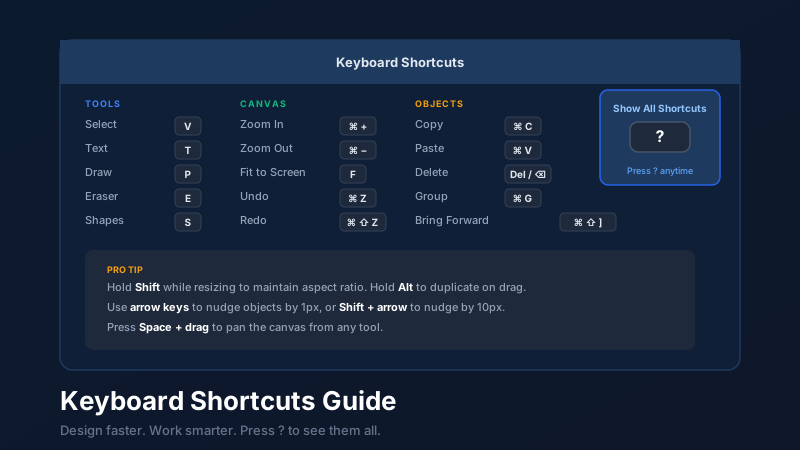
Keyboard shortcuts in a design tool are single-key or modifier-key combinations that activate tools, navigate the canvas, and manipulate objects without reaching for the mouse. CollabDraw includes 20+ essential shortcuts covering tool switching, canvas navigation, object manipulation, layer ordering, and precision editing — all accessible in any browser with no software download, and viewable anytime by pressing the ? key.
Over a working week, the accumulated friction from toolbar-reaching adds up to significant time lost. More importantly, breaking your flow to find and click a tool breaks your concentration. The best designers stay in flow by keeping their eyes on the canvas and their hands at the keyboard.
Here are 20 shortcuts that make the most impact — starting with the ones you'll use every single session.
Tool Shortcuts: Switch Instantly Without the Toolbar
These single-key shortcuts activate tools immediately, no modifiers required:
- V — Select tool. The most important shortcut to internalise. Press V after any other operation to return to normal selection mode.
- T — Text tool. Click anywhere after pressing T to place a text box and start typing immediately.
- P — Pen/Draw tool. Activate freehand drawing mode without touching the toolbar.
- E — Eraser. Remove strokes and objects without hunting for the eraser in the toolbar.
- S — Shapes panel. Jump to shape selection mode.
- ? — Show all shortcuts. Opens the complete keyboard shortcut reference modal inside CollabDraw. If you ever blank on a shortcut, this is your first stop.
Canvas Navigation: Moving Around Without Scrolling
- Cmd/Ctrl + + — Zoom in. Repeatable — press multiple times to zoom progressively.
- Cmd/Ctrl + − — Zoom out. Pair with zoom in to quickly adjust your working view.
- Cmd/Ctrl + 0 — Reset zoom to 100%. Useful when you've lost track of your zoom level.
- F — Fit canvas to screen. Shows all objects on the current page in a single view. Invaluable for re-orienting after deep zooming into a detail.
- Space + drag — Pan the canvas from any active tool. Hold Space, click and drag to pan — then release Space to return to your active tool. No need to switch to a dedicated pan tool.
- Middle mouse button + drag — Pan the canvas using the scroll wheel. If you have a middle mouse button, this is the fastest way to navigate a large canvas.
Object Manipulation: Edit Without Right-Clicking
- Cmd/Ctrl + C / V — Copy and paste. Standard but critical. Paste deposits a copy slightly offset from the original — paste repeatedly to create duplicated elements with consistent offset spacing.
- Cmd/Ctrl + D — Duplicate in place. Creates a copy of the selected object offset slightly, in a single keystroke. Faster than copy-paste for rapid duplication.
- Delete or Backspace — Delete selected object(s). Works on any selection including multiple objects and groups.
- Cmd/Ctrl + G — Group selected objects. Select multiple objects and press this to wrap them in a group. Groups behave as a single object for selection, movement, and duplication.
- Cmd/Ctrl + Shift + G — Ungroup. Breaks a group back into individual elements while keeping them selected.
- Cmd/Ctrl + Z — Undo. Goes back one step in history. Repeatable — press multiple times to undo multiple actions.
- Cmd/Ctrl + Shift + Z — Redo. Steps forward through history. If you undo too far, redo brings you back.
Layer Order: Controlling What's On Top
- Cmd/Ctrl + ] — Bring forward one step. Moves the selected object one position up in the layer stack.
- Cmd/Ctrl + [ — Send backward one step. Moves the selected object one position down in the layer stack.
- Cmd/Ctrl + Shift + ] — Bring to front. Moves the selected object to the very top of the layer stack.
- Cmd/Ctrl + Shift + [ — Send to back. Moves the selected object to the very bottom of the layer stack.
Precision Techniques Worth Knowing
Arrow key nudging
With an object selected, press any arrow key to move it exactly 1 pixel in that direction. Hold Shift + arrow to move 10 pixels at a time. This is far more precise than dragging with a mouse for fine-tuning alignment.
Shift + resize to maintain aspect ratio
Hold Shift while dragging a resize handle to constrain the object's width-to-height ratio. Essential for resizing images, icons, and logos without distortion.
Alt/Option + drag to duplicate on drag
Hold Alt (Option on Mac) while dragging an object to create a copy at the drop position, leaving the original in place. Much faster than copy-paste when you need to position a duplicate in a specific location.
Shift + click to select multiple
Hold Shift and click individual objects to add them to your current selection. Combine with group (Cmd/Ctrl + G) to quickly group related elements.
How CollabDraw Compares to Figma, Canva, and Adobe for Keyboard Shortcuts
When choosing a free design tool with keyboard shortcuts, the main alternatives are Figma shortcuts (requires Figma account with limited free projects), Canva shortcuts (limited shortcut set, no in-app reference), and Adobe shortcuts (requires paid Creative Cloud subscription). Here's how CollabDraw stands out:
- Truly free: Full keyboard shortcut set at no cost — Adobe requires a paid subscription
- No sign-up required: Start using shortcuts instantly — Figma, Canva, and Adobe all require account creation
- In-app reference: Press ? anytime to see the complete shortcut list — Canva has no in-app shortcut reference
- Familiar patterns: Shortcuts follow standard design tool conventions — easy to transition from Figma or Adobe
Key Facts About CollabDraw's Free Keyboard Shortcuts
- Price: 100% free — no subscription, no credit card, no watermark
- Shortcut categories: Tools, canvas navigation, object manipulation, layer order, precision techniques
- In-app reference: Press ? to view all shortcuts organised by category
- Export formats: PNG, PDF, SVG, PPTX — all free
- Account required: No — start without signing up
- Best for: Designers who want to work faster by keeping their hands on the keyboard
View the Full Reference Any Time
Press ? at any time while using CollabDraw to open the keyboard shortcuts modal. The full reference is organised by category — tools, canvas, objects, text, and view — so you can find what you're looking for quickly.
The single most effective way to build shortcut fluency is to identify one shortcut per session that you want to internalise, and use it consciously every time you'd normally reach for the toolbar. Within a week of focused practice, it becomes automatic — and your design velocity climbs noticeably.