Beyond Generation: AI That Transforms What You Already Have
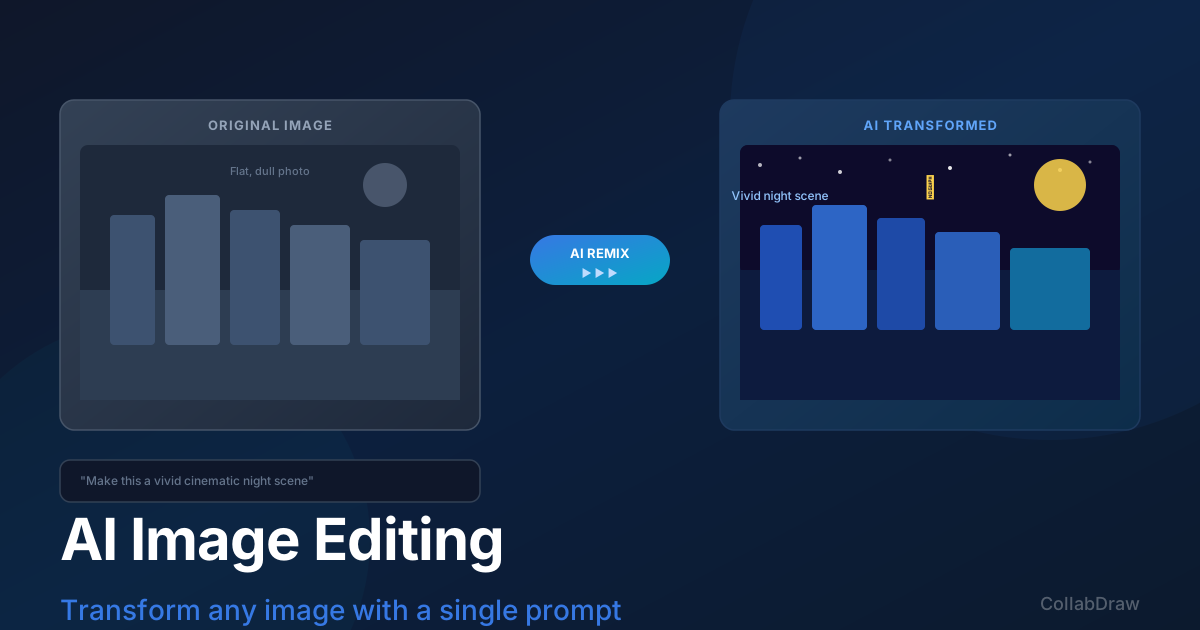
AI image editing is the use of artificial intelligence to transform, restyle, or remix an existing image using text prompts rather than manual pixel-level adjustments. CollabDraw lets you select any image on your canvas and apply AI-driven style transfers, background replacements, mood adjustments, and element additions — all through plain-language instructions, with no software download and no cost.
The difference is significant. Generation creates from scratch. Editing takes an existing image and transforms it according to your instructions — changing its style, altering its environment, replacing elements, or blending it with reference material.
CollabDraw supports both workflows in the same panel, on the same canvas. You can generate a base image, then remix it iteratively — refining the result through prompts rather than pixels.
What AI Image Editing Can Do
Style Transfer
Take any photo or illustration and transform it into a completely different visual style. "Convert this photo to a flat vector illustration", "Render this as a watercolour painting", "Make this look like a 1950s retro poster" — the AI interprets the instruction and rebuilds the image in the new style while preserving the core subject and composition.
Background Replacement
While CollabDraw includes a dedicated one-click background remover, AI editing goes further. You can describe the new background you want: "Put this product in a modern kitchen", "Place this portrait in front of a mountain landscape at sunset", "Move this person to a corporate boardroom setting". The AI handles the compositing, matching lighting and perspective where possible.
Atmosphere and Mood Adjustment
Change the emotional tone of an image without altering its content. "Make this image more dramatic and cinematic", "Give this a warm, golden-hour feel", "Transform this to a cold, winter morning atmosphere" — mood-based edits that would take hours in a traditional photo editor happen in seconds.
Adding and Removing Elements
Add objects that weren't in the original photo, or remove distractions. "Add a coffee cup to the desk", "Remove the background clutter", "Add lens flare to the light source". The AI fills in gaps intelligently based on the surrounding context.
Iterative Refinement
Perhaps the most powerful use is iteration. Generate a first version, study it, and prompt again: "Make the colours more vibrant", "The person should be smiling", "Shift the composition so the subject is on the left". Each iteration builds on the last.
How to Use AI Image Editing in CollabDraw
- Place an image on your canvas — from the stock library, an upload, or a previous AI generation
- Select the image on the canvas
- Open the AI panel and choose the Edit/Remix mode
- Type your transformation instruction in plain English
- Preview the result — if it's close but not perfect, refine with a follow-up prompt
- Accept the result and continue working with it as a standard canvas element
You can also upload a reference image alongside your prompt — useful when you want to match a specific aesthetic, style, or visual language that's hard to describe purely in words.
AI Editing for Product Photography
One of the most commercially valuable uses of AI image editing is product photography enhancement. A product shot taken in a plain studio setting can be transformed into a lifestyle context — showing the product in use, in an aspirational environment, or alongside complementary items — without a costly reshoots.
The workflow:
- Start with your product photo (remove the background first using CollabDraw's one-click background remover if needed)
- Use AI editing to place the product in the desired context
- Refine the result with follow-up prompts until the environment looks natural
- Export as a high-resolution PNG for use in marketing materials
What used to require a professional photographer and a studio setup can now be handled in under 10 minutes, for free.
How CollabDraw Compares to Adobe Firefly, Canva Magic Edit, and DALL-E
When choosing a free AI image editing tool, the main alternatives are Adobe Firefly (requires Adobe Creative Cloud subscription), Canva Magic Edit (limited to Canva's platform with paid features), and DALL-E (generates images but lacks in-place editing on a canvas). Here's how CollabDraw stands out:
- Truly free: Full AI image editing and remix on the free tier — no Creative Cloud subscription needed
- No sign-up required: Start editing instantly — Adobe Firefly and Canva require account creation
- Canvas-native editing: Edit images directly on an infinite canvas alongside other design elements — DALL-E only generates standalone images
- Iterative remix workflow: Generate, edit, refine with follow-up prompts, and combine with charts, text, and shapes in one place
Key Facts About CollabDraw's Free AI Image Editing
- Price: 100% free — no subscription, no credit card, no watermark
- Editing modes: Style transfer, background replacement, mood adjustment, element add/remove, iterative refinement
- Input: Any image on your canvas — stock library, upload, or AI-generated
- Export formats: PNG, PDF, SVG, PPTX — all free
- Account required: No — start without signing up
- Best for: Marketers, product photographers, and designers who need to transform images with text prompts
Combining AI Editing with Canvas Tools
The real power comes from combining AI-edited images with everything else CollabDraw offers. After transforming an image with AI:
- Apply image filters to fine-tune brightness, contrast, and saturation
- Mask the result into a custom shape for a polished presentation layout
- Layer text, icons, and shapes on top of the edited image
- Use the crop tool to reframe the composition
- Export the entire canvas as a high-resolution PNG, PDF, or share via link
The AI handles the creative heavy lifting. The canvas tools give you precise finishing control. Together they form a complete visual production pipeline.