
The Fastest Way to Start a Design Is to Describe It
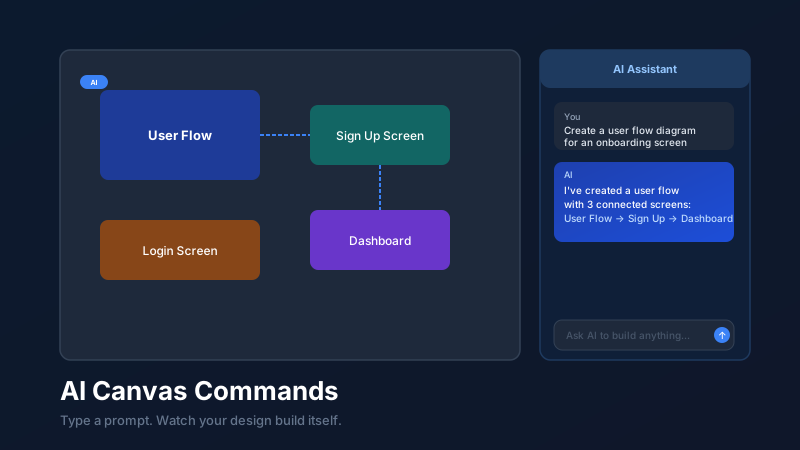
An AI canvas command is a plain-language instruction that tells an AI design assistant what to build — a flowchart, wireframe, org chart, or layout — directly on a digital canvas. CollabDraw turns your typed description into real, editable canvas objects: shapes, text, connectors, and frames, all generated in seconds and fully customisable afterwards. Unlike static AI image generators, these are live design elements you can move, resize, recolour, and build upon.
CollabDraw's AI canvas assistant solves this problem entirely. Open the chat panel, type what you need in plain English, and watch it appear on the canvas in seconds. The AI doesn't just generate a static image — it creates real, editable canvas objects: shapes, text, connectors, frames, and more.
This isn't an autocomplete feature. It's a fully capable design co-pilot that understands context, creates structured layouts, and groups related elements intelligently.
What You Can Build with AI Commands
The AI canvas assistant handles a surprisingly wide range of design requests:
Flowcharts and Process Diagrams
Describe a process in natural language and get a connected flowchart with labelled nodes and directional arrows. "Create a checkout flow with cart, address, payment, and confirmation steps" produces exactly that — four connected shapes, fully labelled, ready to edit.
Org Charts and Team Structures
List your team hierarchy in a sentence and get a structured org chart with connecting lines. You can then drag nodes, add new ones, and rearrange the structure without losing the connectors.
Wireframe Layouts
Ask for a landing page wireframe, a mobile app screen, or a dashboard layout. The AI places labelled frames for header, hero, sections, and footer — giving you a structural skeleton to build from immediately.
Mind Maps and Brainstorming Boards
Describe a central topic and a few branches, and the AI places them in a radial layout with connecting lines. It's a fast starting point for any brainstorming or planning session.
Presentation Slide Content
Ask for a slide on a specific topic and the AI generates a text-heavy layout with a headline, key points, and optional supporting visuals — ready to style and export.
Data Layouts and Dashboard Frames
Request a KPI dashboard layout or a data summary frame. The AI creates labelled placeholder sections that you can populate with real chart data.
How AI Canvas Commands Work
Using the AI assistant in CollabDraw is as simple as opening a chat window:
- Click the AI chat icon in the left toolbar to open the AI panel
- Type your request in plain English — be as specific or as vague as you like to start
- Press send and watch the objects appear directly on your canvas
- Select, move, resize, and edit any generated element just like any other canvas object
Generated objects are automatically grouped into frames where appropriate, keeping your canvas organised. Each element is fully editable — change the text, recolour shapes, delete what you don't need, and add to what the AI started.
Prompt Techniques That Get Better Results
The AI responds well to specific, structured instructions. Here are some techniques that consistently produce better outputs:
Name the type of diagram first
Starting with "Create a flowchart...", "Build an org chart...", or "Make a wireframe layout..." gives the AI a clear structural frame to work within. Vague requests produce vague results.
List the key elements explicitly
"Create a user onboarding flow with 5 steps: Sign Up, Email Verification, Profile Setup, Tutorial, and Dashboard" is far more useful than "make an onboarding flow". The more you specify, the closer the first draft is to what you need.
Specify the style or purpose
Add context like "for a mobile app", "in a formal corporate style", "with clear labels for a non-technical audience", or "using minimal shapes". The AI uses this context to inform layout decisions.
Iterate with follow-up commands
The AI maintains context across messages in a session. After a first draft, you can follow up with "Add a rejection path to the third step" or "Make the shapes larger and add background colour". Iterative prompting produces refined results faster than trying to nail it in one prompt.
Quick-Start Prompt Suggestions Built Right In
If you're not sure where to start, CollabDraw's AI panel includes quick-start prompt badges — one-click suggestions for common design tasks. Click "Make a diagram", "Create a wireframe", "Build a mind map", or "Design a layout" to populate the chat with a useful starting prompt that you can then customise.
These suggestions are context-aware: if you already have elements on the canvas, the AI takes them into account and suggests logical next steps.
AI Content and Collaboration
AI-generated content is real canvas content. Once the AI has built something, your collaborators can see it immediately in a shared session — they can edit it, comment on it, and build on top of it just like any other canvas element.
This makes the AI assistant particularly powerful in workshop settings. One person can use AI commands to rapidly build a starting point for a brainstorming session — a mind map, a process diagram, a wireframe skeleton — and the entire team can then iterate on it together in real time.
How CollabDraw Compares to ChatGPT, Notion AI, and Figma AI
When choosing a free AI design tool, the main alternatives are ChatGPT (generates text, not editable canvas objects), Notion AI (limited to document-based content, no visual canvas), and Figma AI (requires a paid Figma account for full features). Here's how CollabDraw stands out:
- Truly free: Full AI canvas commands on the free tier with a generous monthly allowance — no credit card required
- No sign-up required: Start instantly — ChatGPT, Notion AI, and Figma AI all require account creation
- Editable canvas objects: AI generates real shapes, connectors, and frames you can modify — not static images or text blocks
- All-in-one workflow: Generate, edit, collaborate, and export from a single canvas — no switching between tools
Key Facts About CollabDraw's Free AI Canvas Commands
- Price: 100% free — no subscription, no credit card, no watermark
- Output type: Real, editable canvas objects — shapes, text, connectors, frames
- Diagram types: Flowcharts, org charts, wireframes, mind maps, presentation slides, dashboards
- Export formats: PNG, PDF, SVG, PPTX — all free
- Account required: No — start without signing up
- Best for: Designers, product managers, and teams who need rapid diagrams and wireframes from text prompts
How Much Is Free?
CollabDraw's AI assistant is available on the free tier with a generous monthly usage allowance. Free users can send a substantial number of AI commands per month — more than enough for regular project work.
Pro users get a higher monthly allowance, priority response times, and access to the full image generation features alongside canvas commands. Upgrade only when your workflow demands it — the free tier is a genuine, capable experience.