
Most AI Design Tools Hand You a Picture. This One Hands You the Workshop.
Ask most AI design tools for a poster and you get a flattened image. Pixel soup. You can resize it, but you can't change the headline without regenerating the whole thing, you can't swap the button colour without re-rolling the background, and you can't move the logo because there is no logo — there's just a JPEG where a logo used to be.
CollabDraw's AI assistant works completely differently. Describe what you want to make, answer a few quick questions, and it constructs a real, layered design on your canvas — composed of dozens, sometimes hundreds, of individual editable objects. Every background band, every card, every button, every text label, every icon, every badge is its own object sitting on its own layer.
It's the difference between being handed a photograph of a workshop and being handed the workshop.
What "Hundreds of Editable Layers" Actually Looks Like
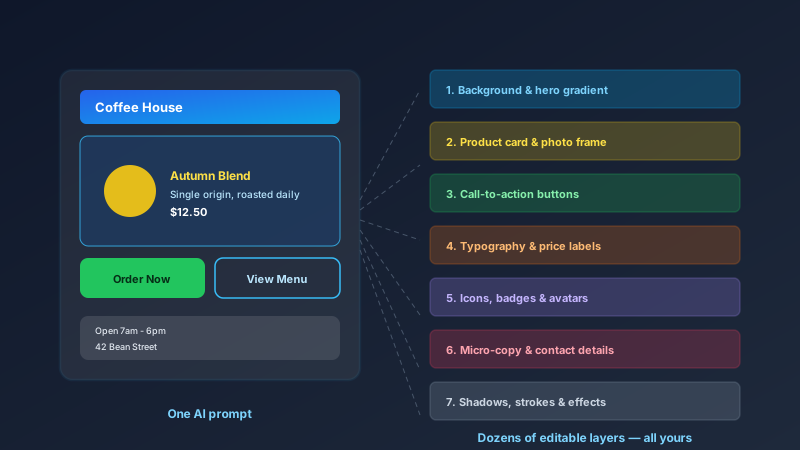
Let's be concrete. Ask the assistant for a coffee shop's promotional screen and it doesn't return one image. It builds something like this:
- Background surfaces first — the screen background, header bands, and section fills, laid down back-to-front so nothing gets painted over
- Content blocks next — product cards with photo frames, price chips, and descriptive text, each card its own stack of objects
- Interactive elements — call-to-action buttons with real shadows, icons, and hover-ready spacing
- Typography layers — every headline, label, price, and micro-copy line as its own text object in the design's type scale
- Detail layers last — icons, badges, avatar rows for social proof, notification dots, strokes and effects
On a simple screen that's a few dozen objects. On a content-rich dashboard or a full product page it regularly reaches into the hundreds. And here's the part that matters: every single one of those objects remains an independent, editable layer.
The Consultation Before the Build
The assistant doesn't guess. Before it draws anything, it interviews you — one question at a time, each with tappable suggestion options so you never have to type if you don't want to:
- Visual style and palette — dark and luxurious, or bright and playful, or clean and corporate?
- What to feature — the primary content and key action for the screen
- Domain-specific detail — the stuff only someone who knows your product would think to ask
- Imagery approach — real photography from the built-in stock library, or a clean graphic style
- Content specifics — actual sample names, prices, and labels, not lorem ipsum
- States and trust signals — badges, ratings, avatars, the polish that separates amateur from professional
Only when it knows what it's building does the assistant start constructing layers. That's why the results feel like they were made for you — because they were.
Every Layer Answers to You
Because the output is a genuine canvas design rather than a flattened render, you have full control the moment it lands:
- Select and edit anything. Click the headline, retype it. Click the button, recolour it. Click the background, swap the gradient.
- Move and rearrange. The layers panel shows every object. Reorder, group, lock, hide — the same controls professional designers use.
- Delete what you don't want. Don't need the promotional banner? Remove it. The rest of the design doesn't break, because nothing is welded together.
- Add what's missing. Drop in stock photos from the 7-million-image library, icons, charts, your own uploads — the AI's work becomes the foundation, not the ceiling.
- Duplicate and vary. Copy the whole design and produce three colour variants for A/B testing in the time it takes other tools to regenerate one image.
Share It Like a Document
Once your layered design is ready, sharing takes one click. CollabDraw generates a link that opens the design in any browser — no account, no download, no plugin for the recipient.
- View-only links for stakeholders who just need to see it
- Comment links so clients can pin feedback directly on the canvas
- Edit links for collaborators who build alongside you in real time
- Password protection and expiry dates for sensitive or time-boxed work
- Visit analytics so you know when your link gets opened
You can also export to PNG, PDF, SVG (Pro), WebP, or PPTX — the layered design becomes print files, social posts, or PowerPoint slides in one step.
The Copyright Question — Answered Clearly
Here's where a lot of AI tools get murky. Some claim ownership of what you generate. Some bury a licence grant in the terms that lets them reuse your work. Some require a paid plan before you're allowed to use outputs commercially.
CollabDraw's position is simple: designs you and the AI assistant create on your account belong to you — including on the free tier.
That means:
- Free accounts keep full ownership. No upgrade required to use your designs commercially. Client work, merchandise, marketing campaigns — all fine.
- No watermark. Nothing is stamped over your work to nudge you toward paying.
- No licence grab. CollabDraw doesn't claim rights over your designs or reserve itself permission to repurpose them.
- Stock assets are royalty-free too. The photos and videos the assistant pulls in come from Pexels and Pixabay under licences that permit commercial use with no attribution.
As always, review the current terms of service for the formal wording — but the principle has stayed the same since day one: your canvas, your copyright.
Why Layered Output Changes Who Can Design
A flattened AI image gives you a result you can look at. A layered AI design gives you a result you can continue. That difference is quietly enormous:
- Small businesses can get a professional-grade promo design in minutes, then tweak the menu prices next week without starting over
- Freelancers can use the AI's build as a first draft and bill for the expert refinements — the same way writers use AI drafts
- Teams can each refine different layers of the same design in real time, with live cursors showing who's where
- Educators and students can unpack a professional design layer by layer to learn how it's constructed — the layer stack is the lesson
How CollabDraw Compares to Canva's AI and Other Generators
When choosing an AI design assistant, the main alternatives are Canva (freemium — its AI features sit behind credit systems and its magic tools often add rather than replace) and standalone AI image generators (flattened output, ownership questions, subscription walls). Here's how CollabDraw stands out:
- Truly layered: Real canvas objects with individual editing — not a single flattened render
- Truly free: The AI assistant, the layer editing, and commercial use of your designs are all included on the free tier
- No sign-up required to start: Open the app, talk to the assistant, watch the design build
- You keep the copyright: No watermark, no licence grab, no upgrade gate on ownership
- Shareable and collaborative: Live links with permissions, comments, and real-time co-editing built in
Key Facts About CollabDraw's AI Design Assistant
- Price: 100% free — no subscription, no credit card, no watermark
- Output: Fully layered canvas designs — dozens to hundreds of individually editable objects
- Process: Guided clarifying questions with tap-to-answer suggestion options before every build
- Editing: Select, retext, recolour, move, group, lock, and delete any layer — plus the full canvas toolset on top
- Imagery: Pulls from 7M+ royalty-free stock photos and 5,500+ built-in icons as it builds
- Sharing: View, comment, or edit links with password protection, expiry dates, and visit analytics
- Copyright: Yours — including on the free account, with commercial use allowed
- Account required: No — start without signing up
- Best for: Small businesses, freelancers, marketers, teams, and anyone who wants a professional design they can actually edit
Let the AI Assistant Design It For You
The irony of this article is that the tool it describes can design the very thing you're reading about. Ask for a promo screen, a landing page, a dashboard, or a full app flow — the assistant asks its questions, then constructs the layered design on your canvas in front of you.
Start From a Ready-Made Template Instead
CollabDraw also includes a built-in template library — 50 editable templates free without an account, 100 with a free account. Ones that pair well with the AI assistant: the Product Launch marketing template and the Mobile App Wireframe — generate a custom design, or start from a proven layout and let the AI adapt it. Open the Templates panel, click one, and it drops onto your canvas fully editable.
Build Your First Layered Design Free
You don't need an account to open CollabDraw and put the AI assistant to work. No download, no credit card, no sign-up wall — and the design it builds is yours to keep, edit, and share.
Stop collecting flat pictures. Start owning layered designs — free on CollabDraw.